Help centerGetting started
Organizations and team members
Work in a shared organization, switch between organizations, and invite and manage teammates.
What an organization is
An organization is a shared workspace. Its reefs, sites, surveys, photos and results are visible to every member and to no one else. Any member can create and edit reefs, sites and surveys and upload photos.
When you sign up, Ocean creates an organization called My Team with you as its administrator. You can rename it, create more, and join others by invitation.
Switch or create organizations
You always work in one active organization. When you belong to more than one, a selector in the header shows the active one; choosing another switches the whole app to it and takes you to the dashboard.
To create an organization, open Profile settings from the account menu and go to Organization workspaces. Under Create organization, enter a name and a slug (lowercase letters, numbers and single hyphens; it is filled in from the name). You become its administrator and it becomes active right away. The same section lists your organizations with a Make active button.
Roles
| Role | What they can do |
|---|---|
| Member | Create and edit reefs, sites and surveys, upload and analyze photos, review detections. Delete the records they created. |
| Admin | Everything a member can do, plus invite people, change roles, remove members, and delete any record. |
| Owner | The person who created the organization. An administrator whose role can't be changed and who can't be removed. |
Invite teammates
- Open Organization settings from the account menu.
- Under Invitations, enter the person's email address, choose Member or Administrator, and select Send invite.
- They receive an email with a link. New users create an account with the invited email; existing users sign in. The invitation is accepted automatically and your organization becomes their active one.
- Invitations expire after 7 days. Resend sends a fresh email and restarts the 7 days; Revoke cancels it.
- The invitation only works for the email it was sent to. If someone opens it while signed in with another account, Ocean offers Use invited email to switch accounts.
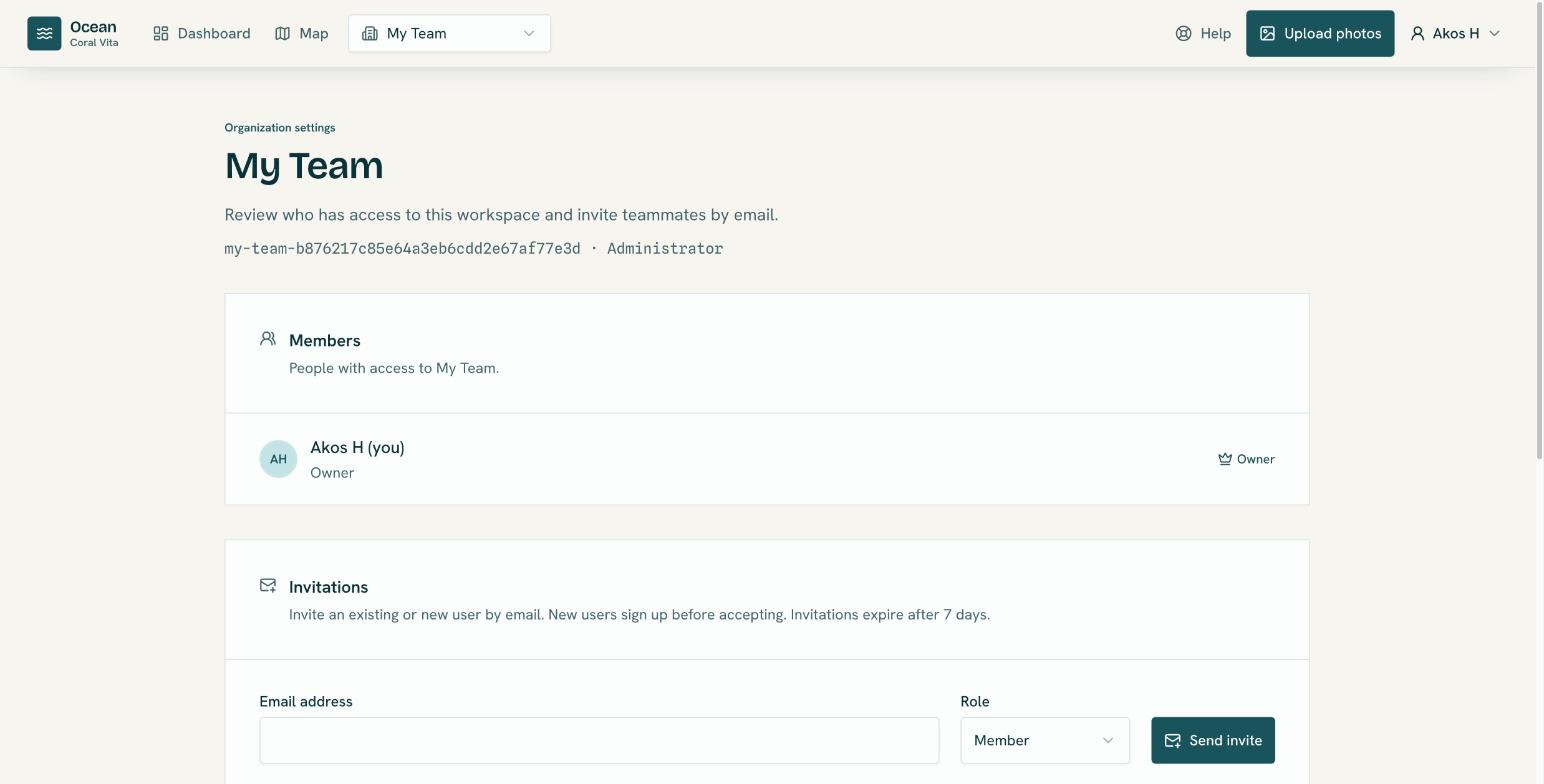
Manage members
The Members list on Organization settings shows everyone with access and their role. Administrators get a menu on each other member with Make administrator or Change to member, and Revoke access. Someone whose access is revoked can be invited again later.