Help centerPhotos and AI analysis
Review coral detections
Inspect each detected coral, mark false positives, and record its growth form, genus and species.
Open a photo's stress details
On a survey's Photographs tab, select an analyzed photo to open Stress details. Three views show the same analysis:
- Scene: the photo with every detected coral outlined.
- Overlay: the bleaching risk heatmap over the photo, with a Heatmap opacity slider.
- Compare: the original photo next to the estimated bleaching risk.
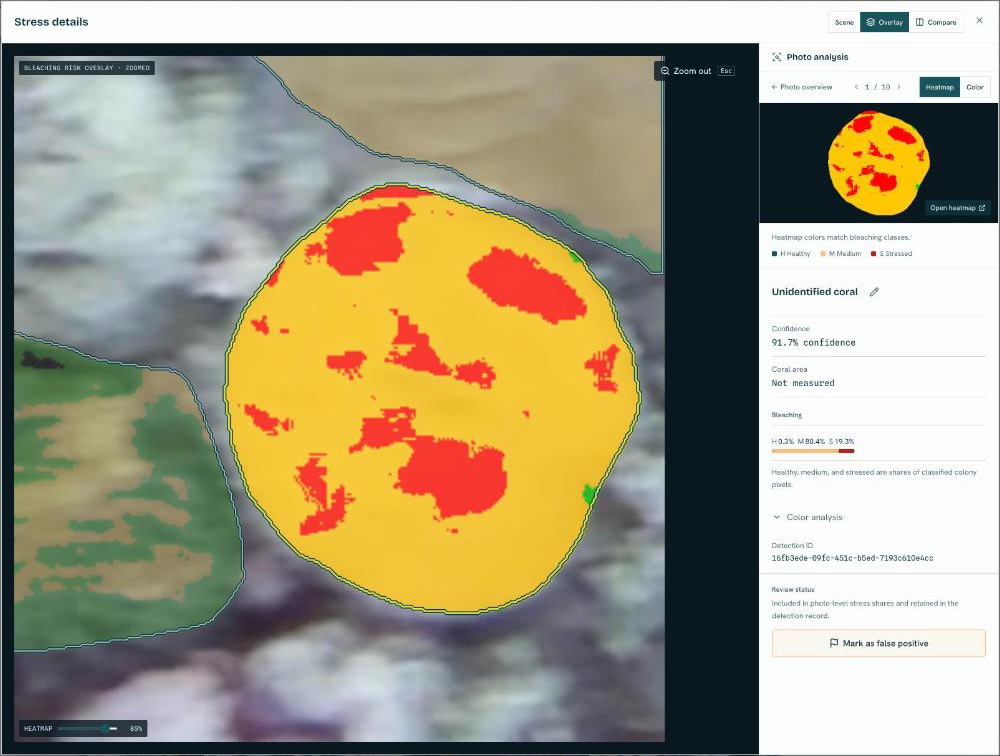
The Photo analysis panel summarizes the photo's bleaching, the survey's NOAA alert and DHW, and lists every coral. Select a coral to zoom in and see its confidence, area, bleaching reading and identification. Step between corals with the arrow keys.
Mark false positives
If the AI outlined something that isn't a coral colony, select it and choose Mark as false positive. It stays in the record, drawn with a dashed outline, but no longer counts toward the photo's, survey's, site's or reef's results. Restore detection undoes it.
Identify a coral
Each detection carries an identification. The AI suggests one; yours replaces it.
- Select the coral and choose Edit coral identification.
- Pick the Growth form: Branching, Digitate, Corymbose, Tabular, Massive, Submassive, Encrusting, Laminar, Foliose, Columnar or Solitary.
- Optionally search for the genus, then the species. Only genera found in that growth form are offered.
You can stop at any level. Genus unknown saves just the growth form (for example "Branching coral"), and Species unknown saves the genus (for example "Acropora sp.").
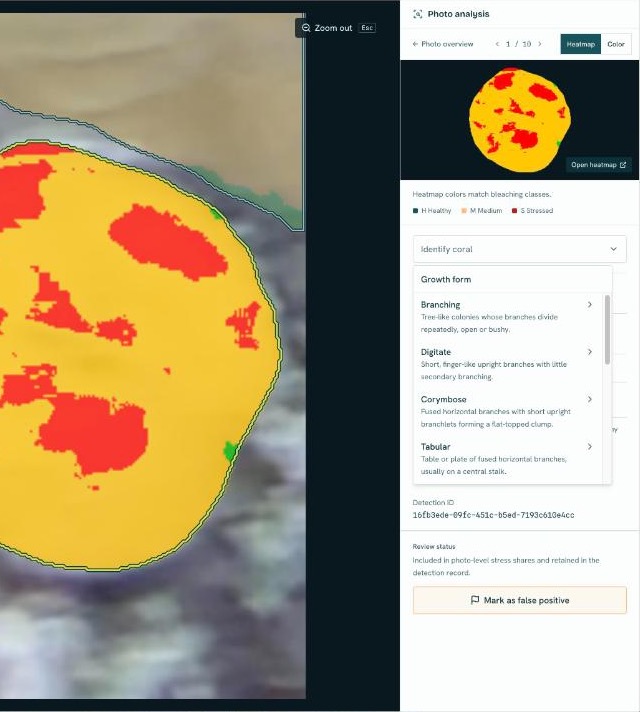
Changing the identification can also recalculate the coral's heatmap. See How the AI analyzes your photos.
The colony ledger
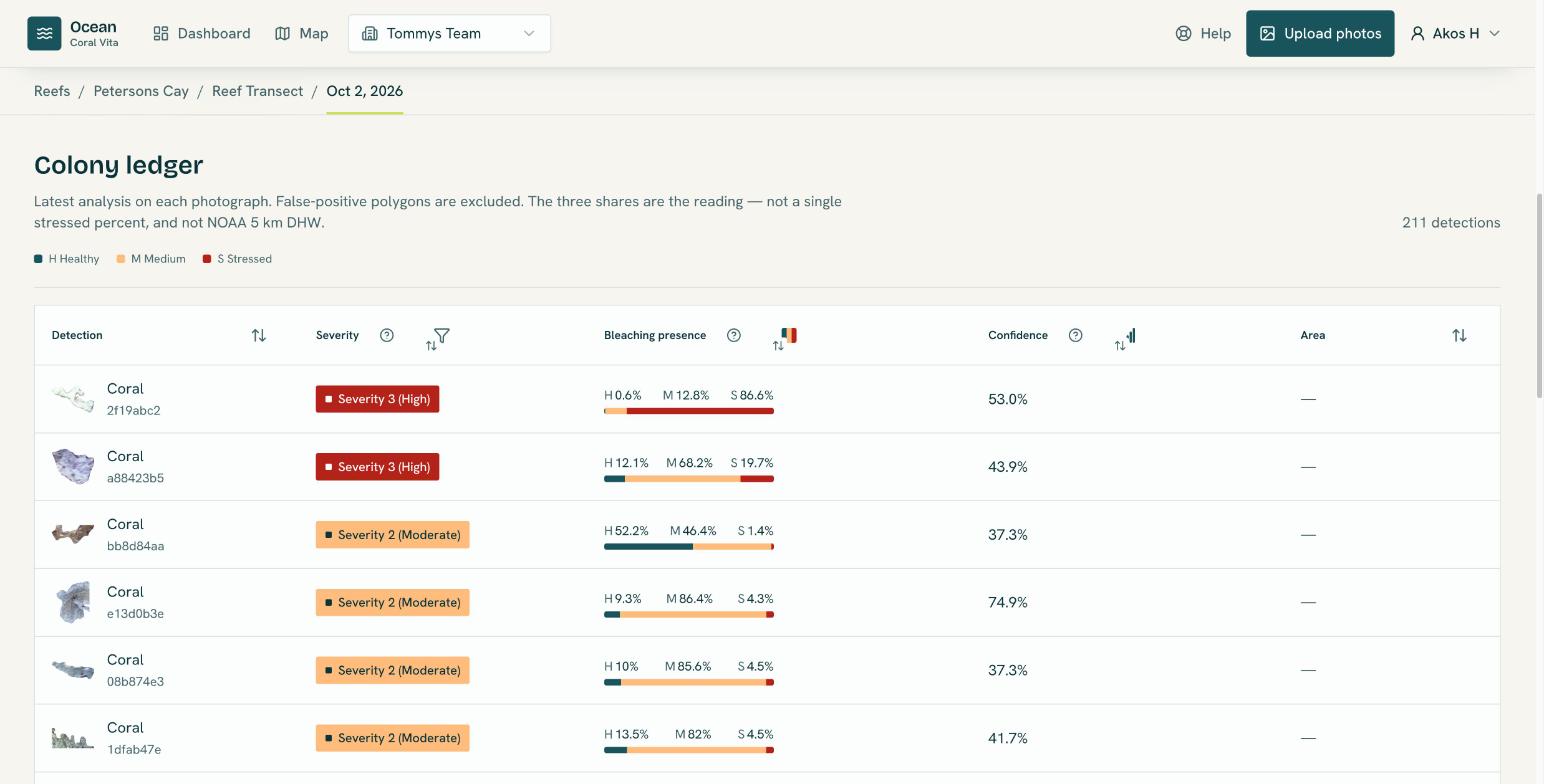
The survey's Coral detections tab lists every colony from the latest analysis of each photo, excluding false positives. For each one it shows the cut-out, the AI's label, the bleaching severity, bleaching presence, confidence and area. Filter by severity class, healthy / medium / stressed ranges or confidence to find the colonies that need attention.