Help centerPhotos and AI analysis
Upload survey photos
Upload the photos from one dive, choose the site and capture date, and start analysis.
Before you upload
- Upload the photos from one dive, at one site together. Each upload becomes one survey.
- Ocean accepts JPEG, PNG and WebP images.
- Keep the photos' original date information. Ocean reads the capture date from it.
- If your team follows a capture protocol (SOP), have it at hand. Results are more accurate when Ocean knows how the images were taken.
Upload photos
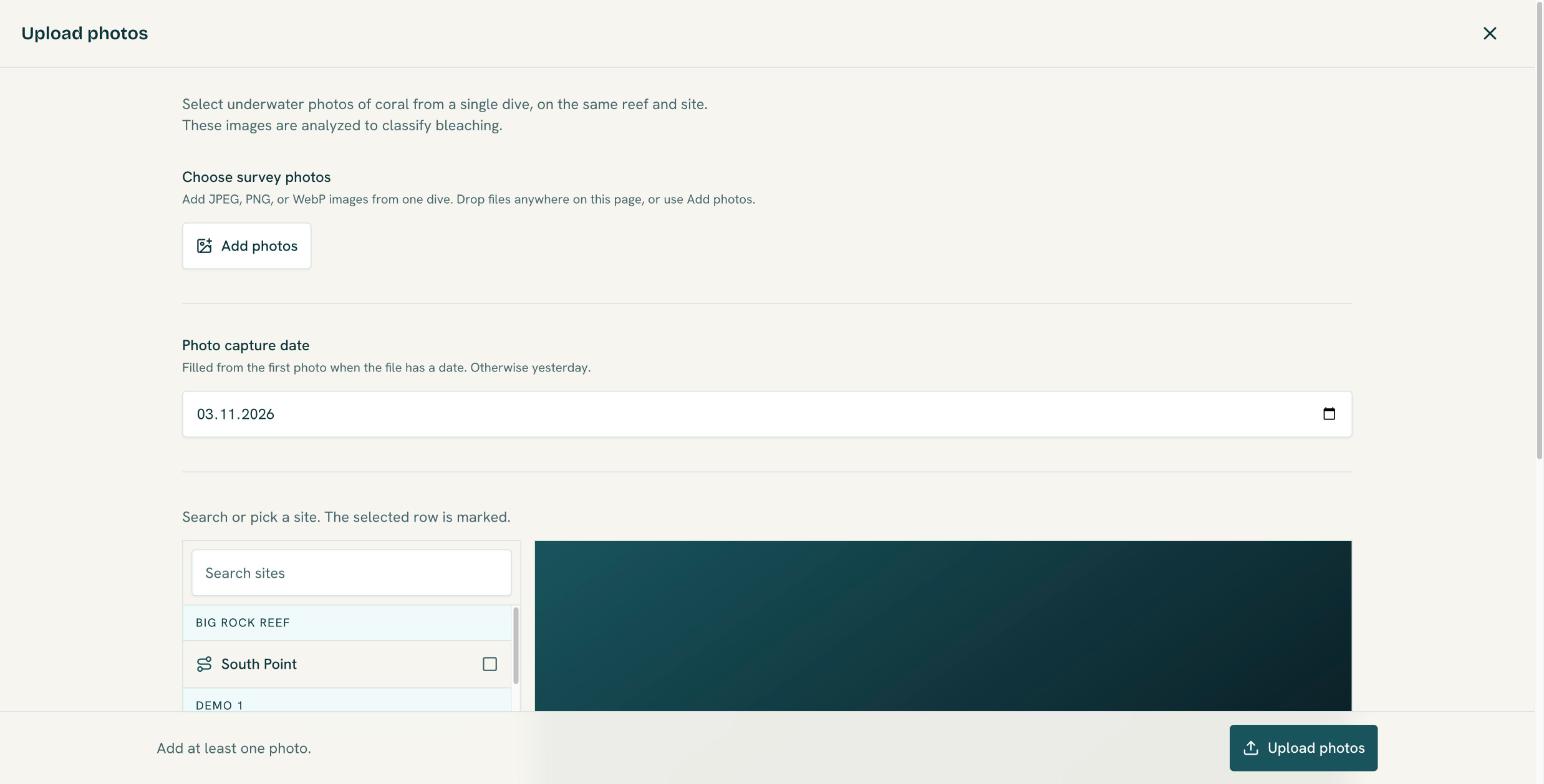
- Select Upload photos in the header.
- Drop the photos anywhere on the page, or use Add photos. You can remove any photo before uploading; duplicates are merged.
- Check the Photo capture date. Ocean fills it from the first photo's date information, or uses yesterday if the photo has none. It becomes the survey date.
- Pick the site: search the list, which is grouped by reef, or click a mapped site on the map.
- Choose the Capture SOP used on the dive. Without one, Ocean still analyzes the photos but warns that results are less accurate.
- Select the upload button, for example Upload 12 photos. If something is missing, the line next to it tells you what, such as Choose a site.
Ocean creates a new survey and opens it while your photos keep uploading.
While photos upload
Uploads continue in the background, four photos at a time, while you use the rest of Ocean. A small indicator shows Uploading photos with a count, then Photos uploaded or Upload finished with errors.
Start the analysis
On the survey page, open the Photographs tab and select Analyze photographs. You can also start it from the map with Analyze on the site's survey. Read on in How the AI analyzes your photos.
Photos that haven't been analyzed yet can be removed from the survey. Once analysis starts they are kept as part of the record.
Your first upload
In a new organization, Ocean guides you through a three-step upload instead:
- Upload photos: add your photos. Analysis starts right away.
- Analyze and classify: confirm the capture date, then click the map where you dived and name the location to create your first site. Ocean creates a reef called My Reef to hold it, which you can rename later. NOAA heat stress for the date is shown alongside.
- Review and save: check the detected corals and bleaching for each photo, exclude photos or mark false detections, then Save.