Help centerSet up your workspace
Surveys
Create a dated survey on a site, edit its date and field notes, and delete it.
Create a survey
A survey is one dated visit to a site. There are three ways to create one:
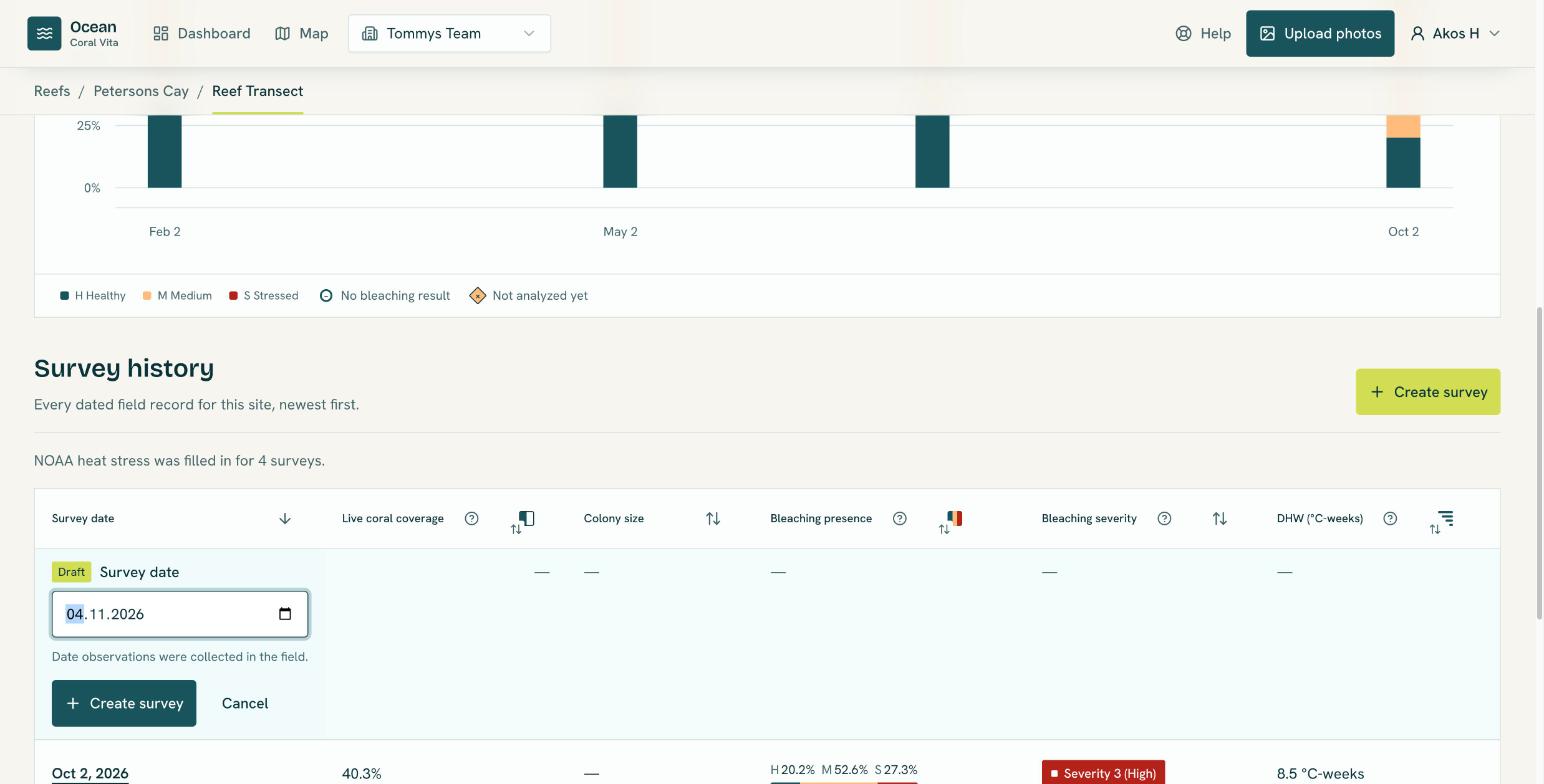
- From the site page: select Create survey, set the Survey date (the date observations were collected in the field), and confirm. Ocean warns you if the site already has a survey on that date, but lets you create another.
- From the map: inspect a site and choose Create survey.
- By uploading photos: every upload creates a new survey on the site you pick, dated from the photos. See Upload survey photos.
The survey date is required and can't be in the future.
Edit the date and description
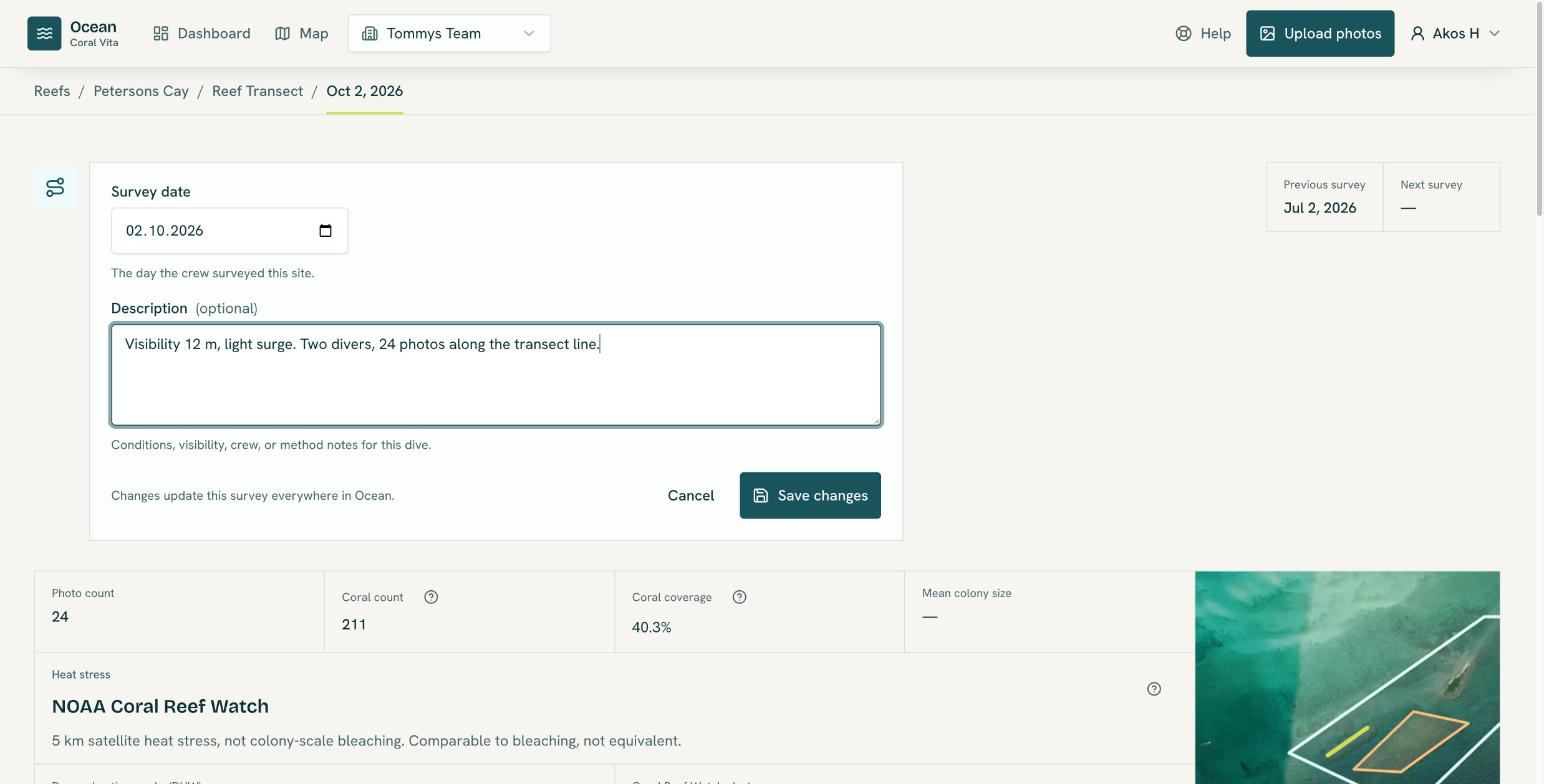
- Open the survey and select Edit survey.
- Change the Survey date, or add a Description with field notes such as conditions, visibility, crew or method (up to 2,000 characters).
- Select Save changes. Cancel or Escape asks before discarding your edits.
Changing the date moves the survey to its new place in the site's history and looks up NOAA heat stress again for the new date. A manually corrected alert level is kept.
Delete a survey
On the survey page, Delete survey removes it with its photos and detections from the dashboard, map and reports, and takes you back to the site. Administrators can delete any survey; members the surveys they created. Deleted surveys can't be restored from the app.